
How to create an Assignments matter in CLNG
A well-opened matter keeps the data and documents for a piece of work together from day one.1
What is an Assignments matter?
Assignments tracks requests for legal work, such as contract review and drafting.
Each matter has basic information, a description, status, notes and contacts. It also carries archive details for retention.1
How do you start a new assignment?
First, open the Assignments module. You can press the Assignments icon on the Global Toolbar, or press File on the menu bar and then Assignments.
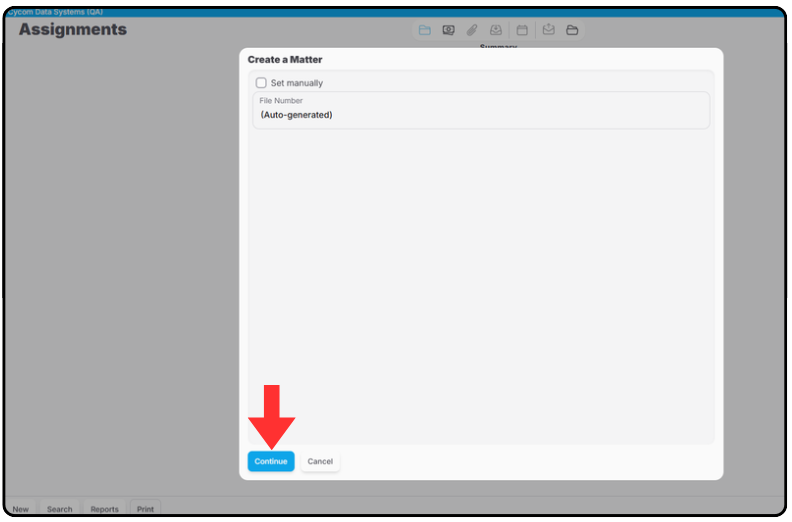
Next, press New. CLNG then opens a New File window.
Continue from that window and CLNG generates the File Number for you, following the naming convention of your office.
You don’t have to invent a number or check the last one used. That’s one less thing to get wrong on a busy day.2
Which fields should you fill in first?
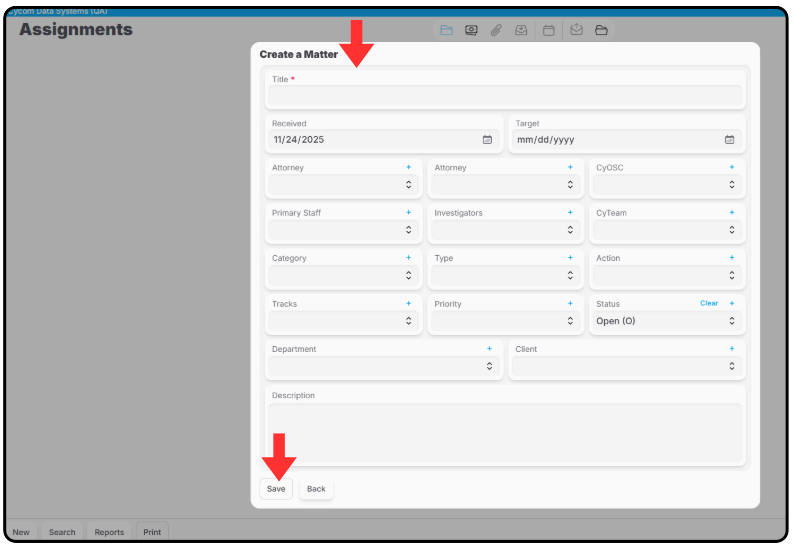
The New Assignment Entry window opens next. Mandatory fields are marked with a red asterisk (*).
You can’t save the assignment until those fields have values. If you try, the word “Required” appears in red.
Start with the Title, which is the name of the new matter. It’s mandatory.
Then check the Received date, which is also mandatory. It defaults to the current date, so change it if the request actually arrived earlier.
Add a Target date if you have one. Entering a Target date automatically places it on the calendar, so you get a reminder without extra work.
Next, set the people. The Primary Attorney is the attorney the assignment was given to. If you’re an attorney, this field fills in with your username.
The Primary Staff field is for the staff member the assignment was given to, or the person managing its entry.2
What about Category, Type and Action?
These codes sort the work the way your office thinks about it. Category codes separate assignments into classifications, such as Contracts, Ordinances, Opinions and Resolutions.
Each Category has its own subset of Type codes, such as Procurement, Licensing, Personnel and Zoning. Pick the Category first so the right Types are available.
Best practices recommend making Category a mandatory field. Whether to do that is a site-specific decision.2
Any shortcuts for moving through the form?
Yes. You can move from field to field with Tab, and Shift + Tab takes you backwards.
The up and down arrow keys cycle through the choices in a drop-down list. If you enter many assignments, that saves a lot of mouse work.2
What happens after you save?
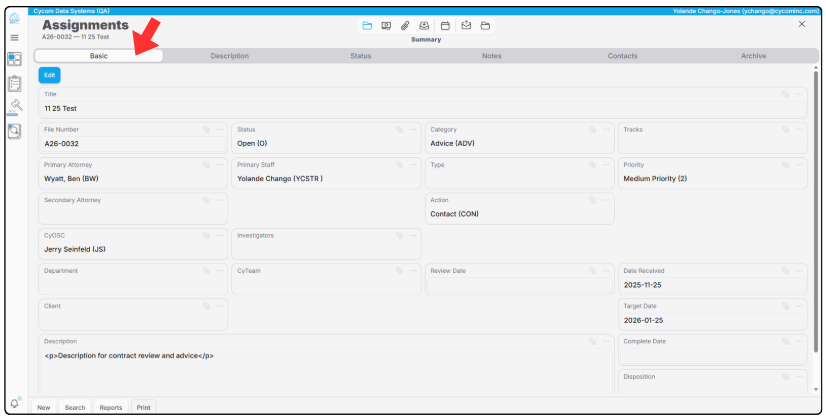
Once you save, the Basic tab of your new Assignments matter appears.2
The Basic tab displays all the codes and personnel assigned to the matter. The Title, File Number and Description are visible there too.3
What should you add afterwards?
The Description tab holds the description text plus the Location (or Address), Location Code, Record number and Council District fields.
Use the Location field for property addresses on real estate assignments, such as deeds or condemnation. Keep address abbreviations consistent, such as “Ave” every time rather than a mix of “Ave” and “Avenue”. Inconsistent formats affect search results.
The Status tab is a log of text entries for tracking activity on the matter. Keep each status entry short, for example “Contract sent back to department for review.” Put the detail in a note on the matter and reference that note in your entry.3
How do you find the matter later?
You land on a dashboard of your open matters. Open the one you want and use the matter header to move between the summary, time, finance, parties, attachments, email import and the calendar.
When a status code is a closed type, the matter drops out of your dashboard and the reports for open matters. It stays searchable.1